
Before You Start
After signing in, open Study programmes and find the study programme you manage. Select the programme name to open the programme workspace. The workspace is organised into three main areas: Details, Courses, and Analysis.
Edit programme information, learning outcomes, target learning type distribution, and access links.
Review courses attached to the programme, approve new courses, and set course type.
Use programme-level analytics to review workload, assessment, and constructive alignment.
Open the Study Programme
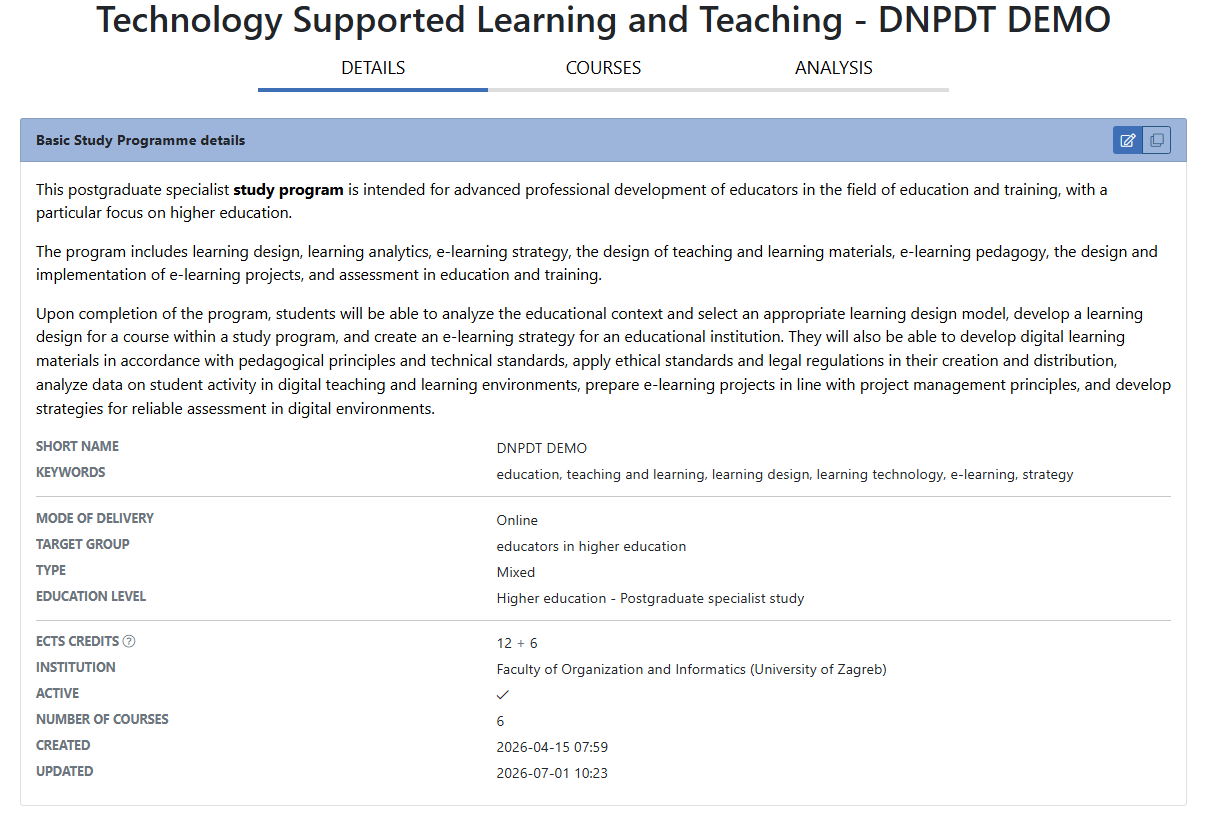
When you open a study programme, the Details tab shows the current programme description, delivery information, ECTS credits, institution, status, number of courses, and learning outcomes.
Use this screen to quickly check whether the programme information is complete before teachers start attaching their courses.
Edit Basic Details
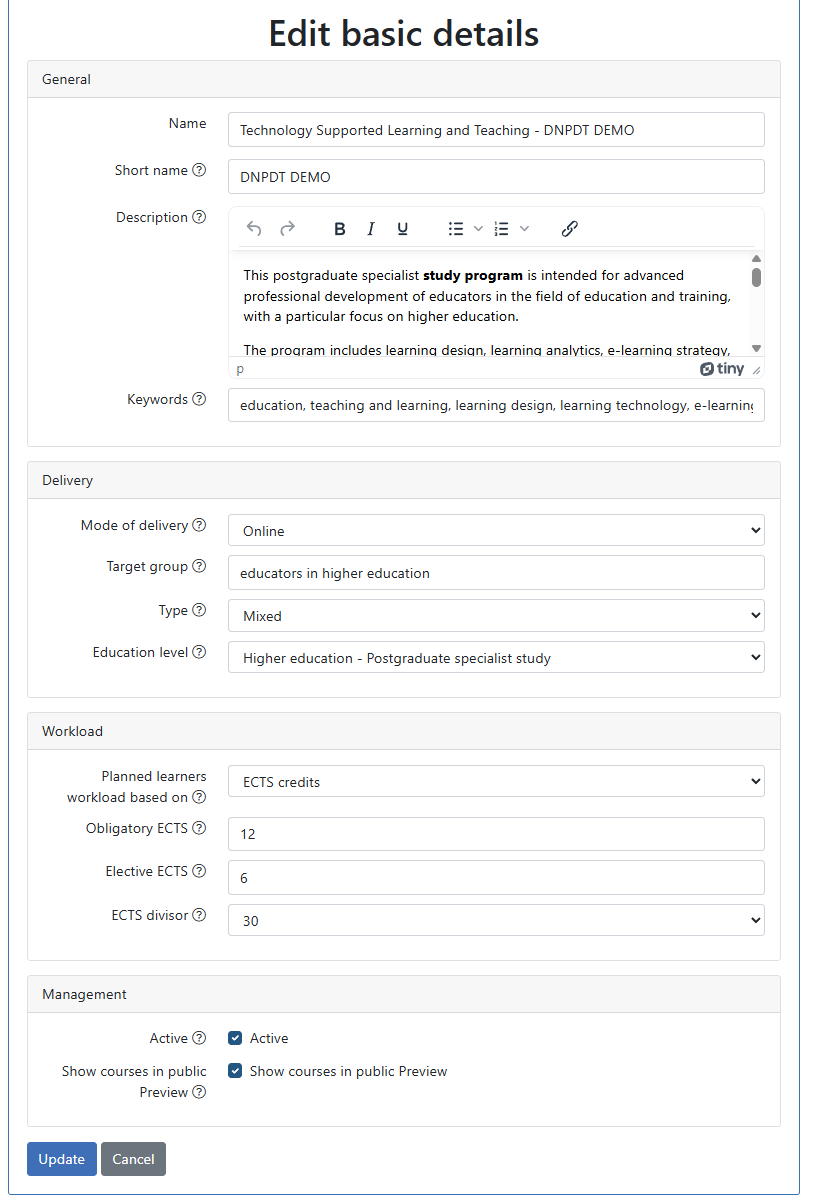
Select the edit button in the Basic Study Programme details panel. Complete or update the main information:
- Name and Short name
- Description and Keywords
- Mode of delivery, Target group, Type, and Education level
- Obligatory ECTS, Elective ECTS, and ECTS divisor
- Active status and public preview settings
Choose Update to save the changes.
Define Programme Learning Outcomes
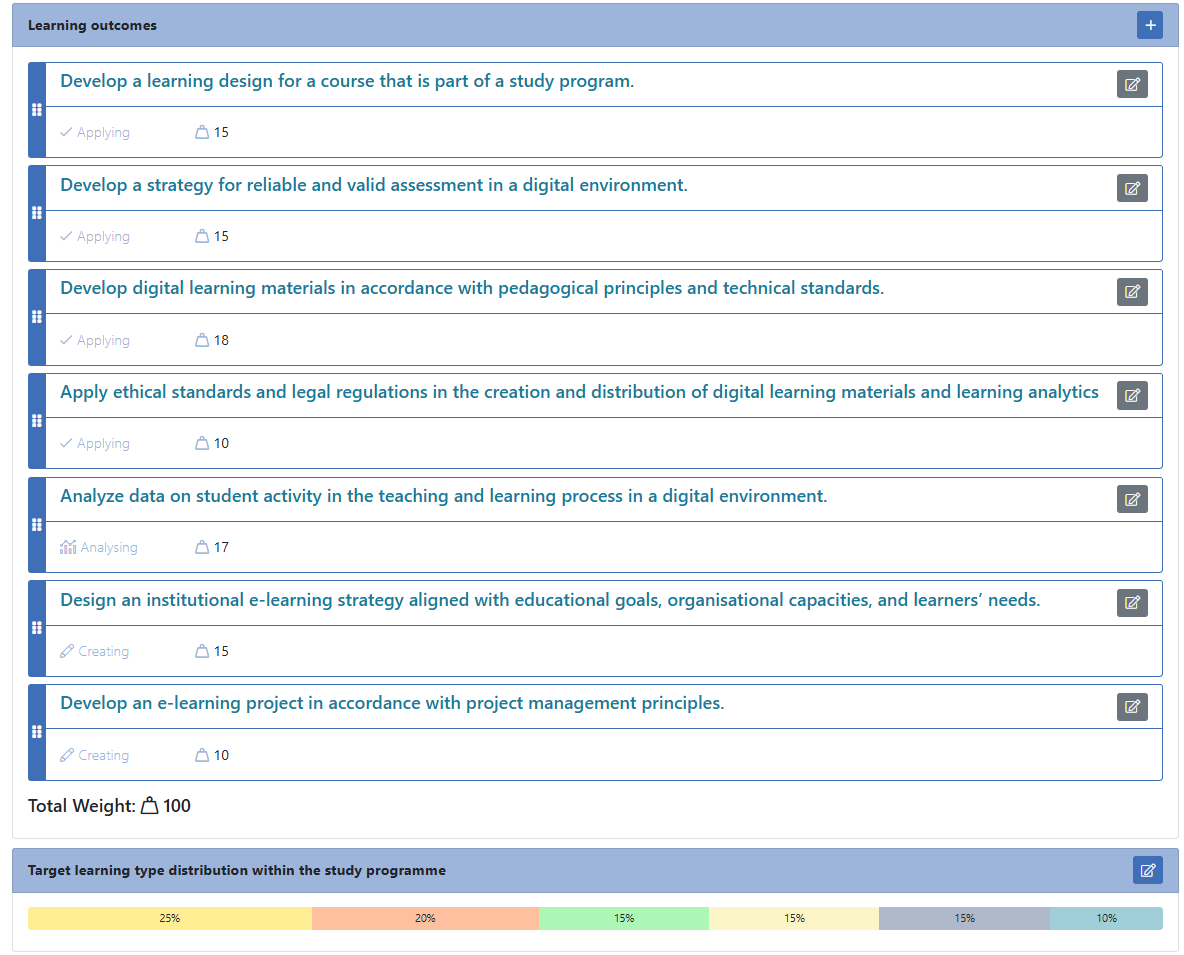
In the Learning outcomes section, add the learning outcomes that describe what students should be able to do after completing the study programme.
For each learning outcome, define its cognitive level and weight. The recommended total weight is 100, because the weights show the relative importance of each outcome within the programme.
- Use the plus button to add a learning outcome.
- Use the edit button to change an existing outcome.
- Use drag and drop if you need to change the order.
- Review the total weight at the bottom of the list.
Optional: Set Target Learning Type Distribution
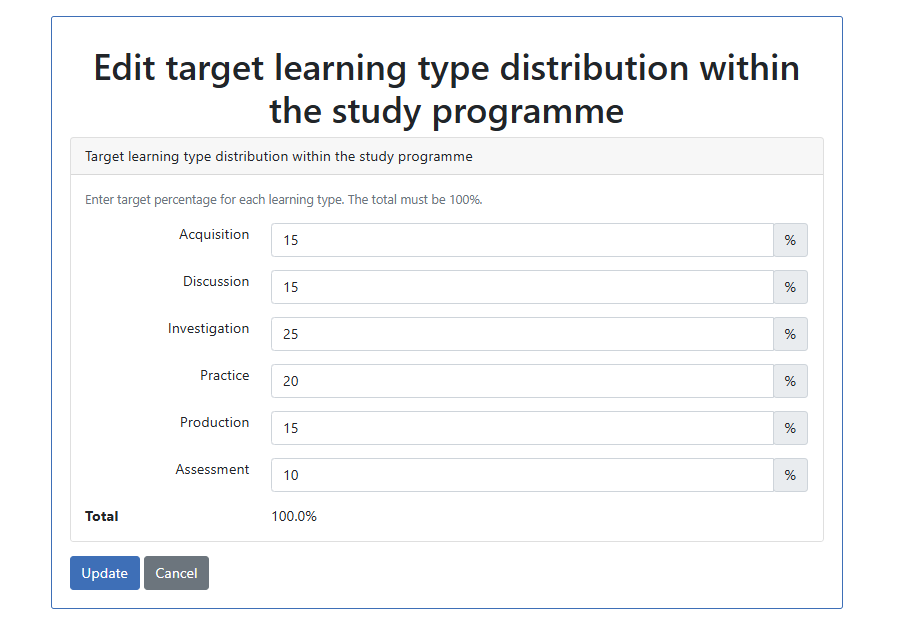
The target learning type distribution describes the planned balance of learning types across the study programme. This is optional, but useful if the programme has a desired pedagogical profile.
Enter target percentages for Acquisition, Discussion, Investigation, Practice, Production, and Assessment. The total must be 100%.
Send the Invitation Link to Teachers
In the Study programme access section, copy the Invitation link and send it to teachers who should attach their courses to the study programme.
The shareLink is for preview access. Use the invitation link when teachers need to connect their existing course designs to the programme.

What Teachers Do With the Link
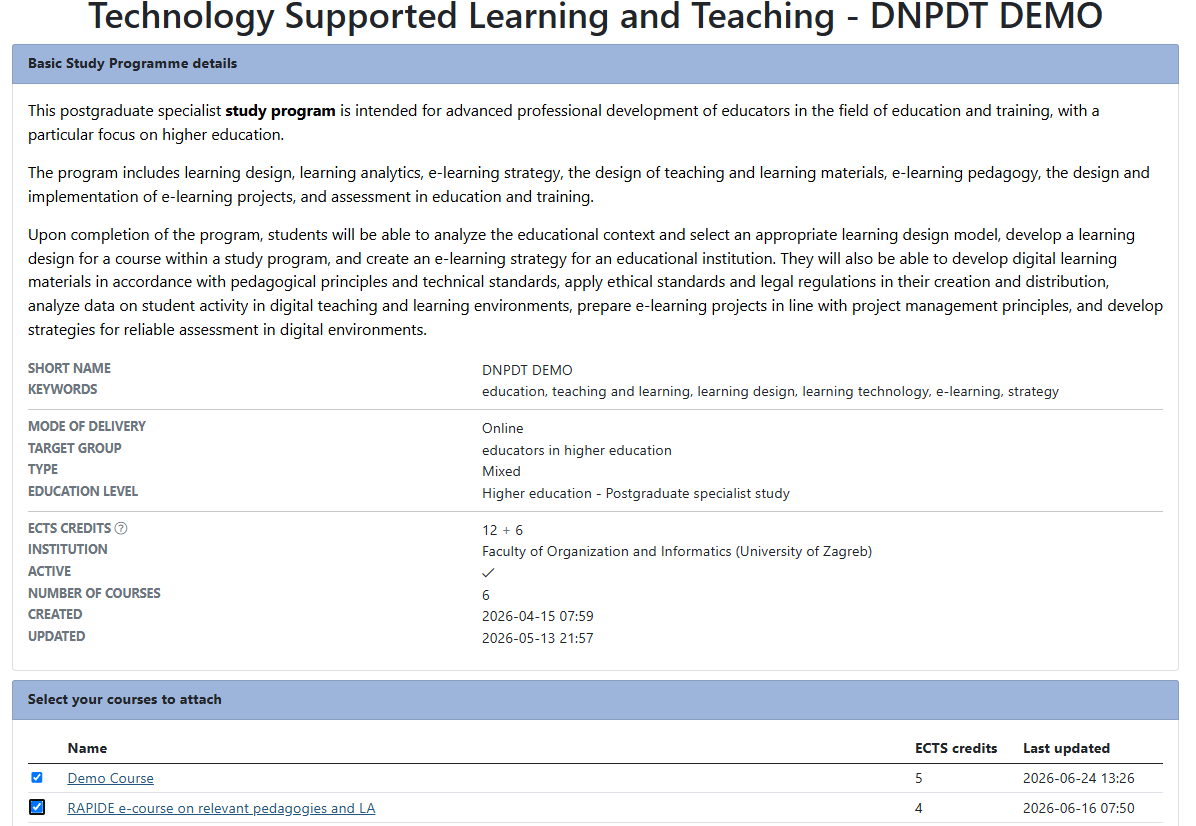
When teachers open the invitation link, they see the programme details and a list of their courses that can be attached. They select the relevant course or courses and submit the request.
After a teacher attaches a course, the study programme manager receives an email notification.
Approve Attached Courses
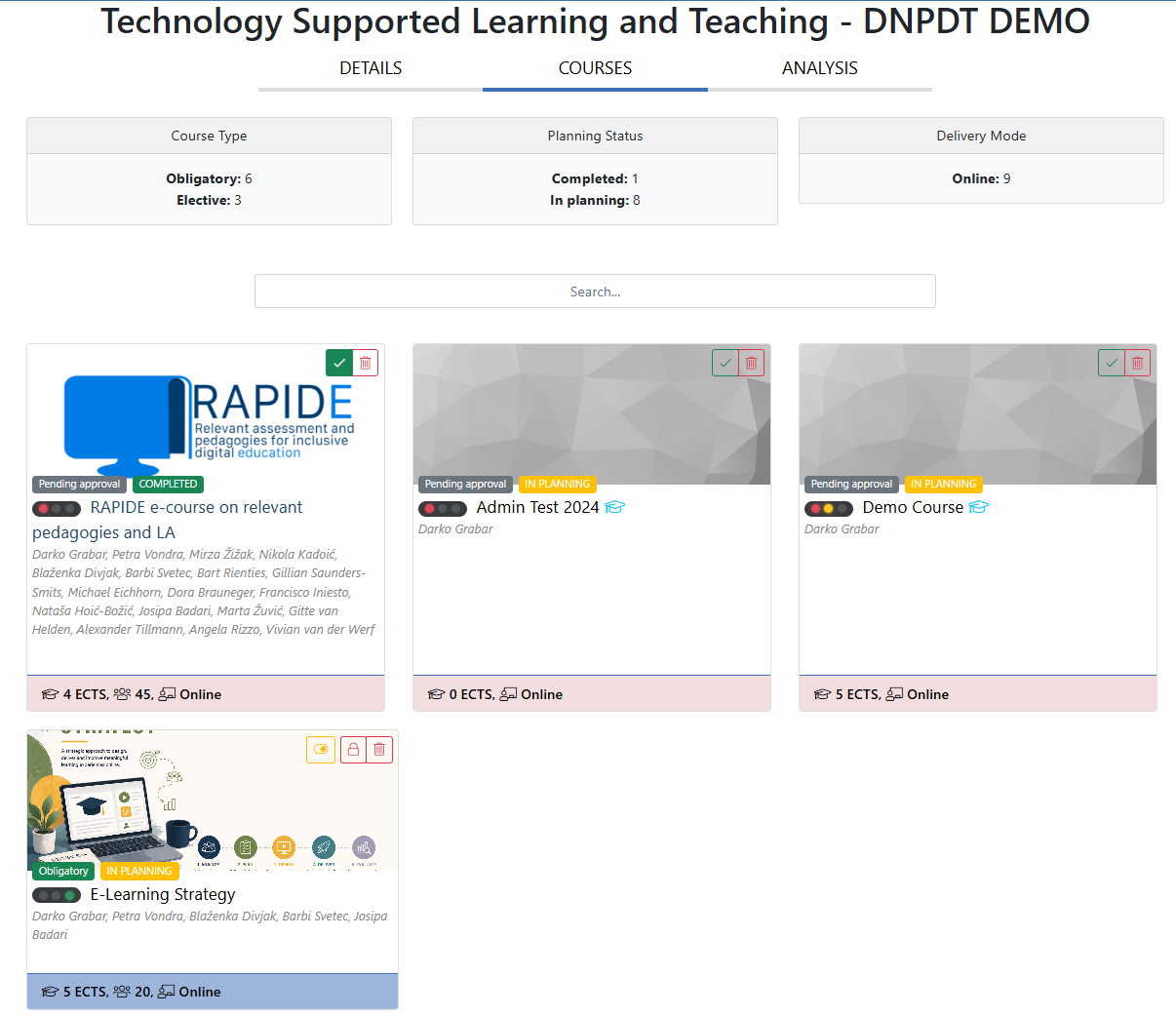
Open the Courses tab to review attached courses. New requests are marked as pending approval. Use the approve button to accept a course into the study programme.
After approval, the course becomes part of the study programme and is included in programme-level analytics.
For each course, you can also:
- Set whether it is Obligatory or Elective.
- Open and review course details.
- Use search to find a course quickly.
- Remove a course if it was attached by mistake.
Use Programme-Level Analytics
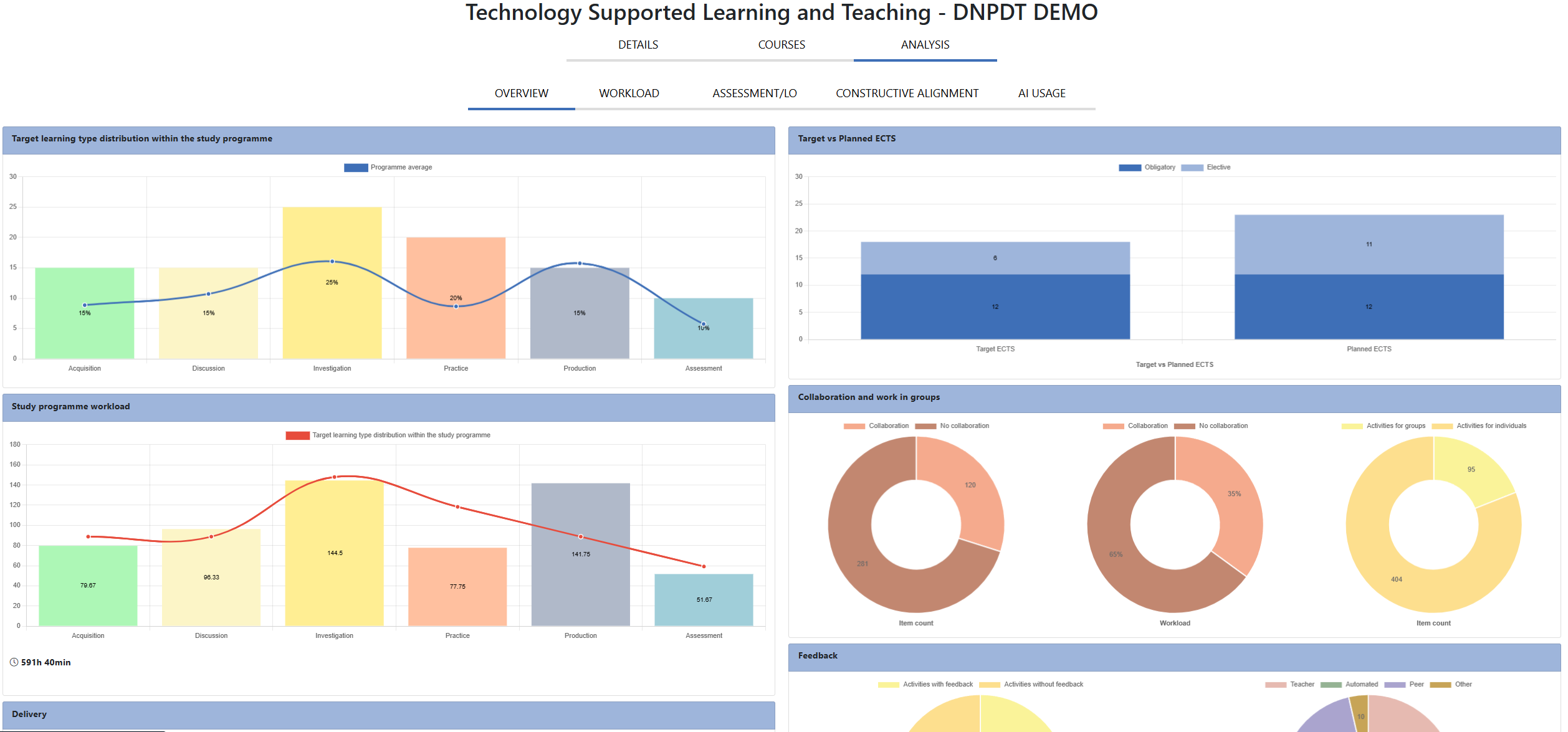
Open the Analysis tab to review analytics for all approved courses in the study programme. The analytics are grouped into several views:
- Overview: general programme balance and summary charts.
- Workload: planned workload across learning types and courses.
- Assessment/LO: assessment and learning outcome relationships.
- Constructive alignment: alignment between learning outcomes, activities, and assessment.
Use these views to identify gaps, overloaded areas, or misalignment across the programme before finalising the curriculum design.
Final Check for Managers
- Basic programme details are complete and up to date.
- The programme is marked as active if it should be used by teachers.
- Programme learning outcomes are defined.
- The total learning outcome weight is 100.
- Target learning type distribution is saved, if used.
- Teachers received the correct invitation link.
- Attached courses were reviewed and approved.
- Each course is marked as obligatory or elective.
- Programme analytics were reviewed.